

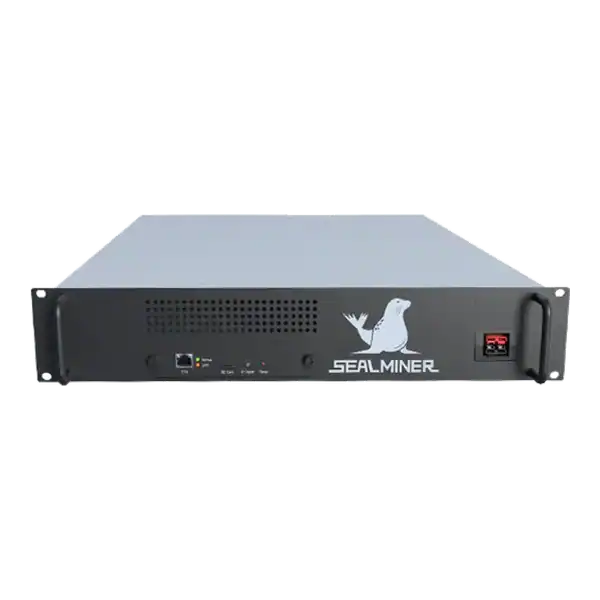
Sealminer A4 Ultra Hydro
Bitcoin & Bitcoin Cash ASIC Miner

886TH
HASHRATE
9.45W/TH
EFFICIENCY
8373W
POWER
£857.66
EST. MONTHLY
NO PAYBACK
EST. ROI
Read the Antminer S21 XP dashboard correctly, verify chips, hashrate and temperatures, secure access, diagnose faults and tune without bypassing protections.
The Antminer S21 XP dashboard shows whether each hashboard is detected, hashing and operating within the conditions reported by the miner. Bitmain's current manual lists chip count, frequency, real-time board hashrate, inlet temperature, outlet temperature and chip state. Use those values with pool-accepted hashrate and wall power. A single green screen or short peak does not establish stable performance or profitability.
Antminer S21 XP dashboard: Bitmain's manual identifies the number of chips detected in each chain, ASIC frequency, real-time hashrate for each hashboard, inlet temperature, outlet temperature and a chip-state icon.
A mining technician is checking Antminer S21 XP dashboard. Stop when chips disappear, boards diverge, temperatures rise, rejects increase, connections heat or the miner restarts.
This guide concerns the air-cooled S21 XP, not the S21 XP Hyd. Or immersion variants. Bitmain’s Version 10 manual gives a typical 270 TH/s and 3,645 W at 25°C, 220 to 277 V AC input and a 20 A single-phase input. Other sales variants or future firmware may differ. So use the actual nameplate and current manual.
The same manual states typical hashrate may fluctuate by ±3 per cent and wall power and efficiency by ±5 per cent. Those are manufacturer notes, not a guarantee that any individual dashboard value or pool result must sit at the centre.
Before logging in, confirm the equipment has been installed on a competent electrical circuit with the specified cord, PDU, earthing, isolation, airflow and network. Dashboard monitoring cannot correct an unsuitable supply or recirculating exhaust.

The manual describes initial access through the miner’s local IP and lists root as the default username and password. Change the password immediately, keep the management interface on a segmented network and never publish it through port forwarding.
Use DHCP reservation or a documented static address with the correct gateway and DNS. Record the MAC address, rack position and serial so the dashboard is matched to the physical miner.
Use a VPN or authenticated management platform for remote access. Separate read-only monitoring from pool, firmware and power changes where the surrounding system supports roles.
Bitmain’s manual identifies the number of chips detected in each chain, ASIC frequency, real-time hashrate for each hashboard, inlet temperature, outlet temperature and a chip-state icon. Green represents normal and red abnormal in that documented version.
Read the boards together. One board with materially lower hashrate, missing chips or abnormal state can be hidden by an acceptable total. Compare the dashboard with the pool’s accepted worker average over a representative period.
| Field | Normal use | Investigate |
|---|---|---|
| Chip count | Expected count remains stable | Missing or changing chips |
| Frequency | Matches approved profile | Unexpected or unsupported value |
| Real hashrate | Boards reasonably balanced | Persistent low or zero board |
| Inlet temperature | Within current manual and site design | Hot intake or recirculation |
| Outlet temperature | Stable with load and airflow | Rapid rise or abnormal spread |
| Chip state | Green in documented firmware | Red or repeated transition |
The S21 XP manual supports three pool entries in decreasing priority. Confirm every endpoint, worker name and optional password from the provider. A failover should point to an intended account rather than an old test wallet.
Local real-time hashrate is volatile and does not remove rejected or stale work. Use the pool’s accepted average, share rejects and connection history. Allow for the pool’s reporting interval and assigned share difficulty.
Test failover by a controlled method and confirm the miner returns as intended. Do not leave all three entries identical or unverified.
Inlet temperature describes the air supplied to the miner and outlet temperature reflects heat removal through the machine. A rising inlet can indicate hot-air recirculation, blocked filters, insufficient room airflow or high ambient conditions.
Compare similar miners in the same area. A single hotter outlet or board imbalance can suggest fan, heatsink, sensor, dust or hashboard issues. Do not invent a universal alarm from another S21 model. Use the current S21 XP documentation and site baseline.
The manual recommends leaving fan control at its default automatic behaviour unless a percentage is deliberately selected. Do not lower fan speed merely to reduce noise without proving temperature and warranty safety.
When a chip state turns red, a board has zero or low hashrate, or chip count changes, preserve the evidence before rebooting. Export or copy the current and kernel logs, note time, pool state, temperatures, firmware and recent work.
Check external causes first: stable input, both required power connections, network, pool, airflow and ambient condition. Repeatedly rebooting can temporarily clear a symptom while losing the event that identifies a failing PSU, board, fan or sensor.
Use Bitmain’s current troubleshooting and authorised repair route for board-level faults. Do not open or modify a miner under warranty without checking the terms and electrical safety.
The air-cooled S21 XP manual documents Normal and Sleep modes and a fixed stock setup rather than promising arbitrary overclocking. Establish at least a representative stock period with accepted hashrate, wall power, temperatures, rejects, fan behaviour and restarts.
If an official firmware adds supported power modes, read its release notes and apply one change to a test unit. Efficiency is measured watts divided by accepted TH/s. A higher local hashrate is not an improvement if energy, rejects, heat or downtime rise faster.
Custom firmware can affect security, support and warranty. Bitmain warns against unauthorised images in its security-firmware guidance. Never bypass temperature or fan protection.
Record the current firmware date shown in the miner interface, settings and pool configuration. Download only the exact S21 XP image through Bitmain’s official route and read the current notes.
Bitmain’s manual warns that the miner must remain powered during the update and states a power failure before completion may require return for repair. Perform the change on stable power and do not update during an electrical or cooling fault.
After restart, verify firmware, pools, password, chips, boards, temperatures and accepted shares before restoring any non-default profile. Keep-settings and factory reset have different effects.
Automated monitoring is useful. But retain a physical inspection and electrical maintenance plan. A dashboard cannot see a discoloured connection, obstructed external duct or water ingress unless a sensor reveals the consequence.
A supported change can make sense when stock performance is stable, the electrical and cooling system has headroom and the new profile is measured at the wall and pool over a representative period.
Keep the change when it improves net contribution without degrading reliability or warranty position.
Stop when chips disappear, boards diverge, temperatures rise, rejects increase, connections heat or the miner restarts. Return to the known-good baseline and diagnose the cause.
Do not chase a screenshot benchmark on a production or warranty-dependent machine.
Antminer S21 XP dashboard: Bitmain's manual identifies the number of chips detected in each chain, ASIC frequency, real-time hashrate for each hashboard, inlet temperature, outlet temperature and a chip-state icon.
This guide concerns the air-cooled S21 XP, not the S21 XP Hyd.
The manual describes initial access through the miner's local IP and lists root as the default username and password.
Bitmain's manual identifies the number of chips detected in each chain, ASIC frequency, real-time hashrate for each hashboard, inlet temperature, outlet temperature and a chip-state icon.
The Antminer S21 XP dashboard is most useful as a structured comparison between boards, chips, temperatures and pool acceptance. Secure the interface, establish stock evidence and preserve logs before intervening. Tune only through a supported, measured and reversible change. A stable accepted terahash at known wall power is more valuable than a short local peak.
Compare the S21 XP with current SHA-256 miners on The Mining Shop UK, and ask the repairs or consultancy team to review persistent board, temperature or power anomalies before changing firmware.
Establish a stock baseline: exact firmware, three configured pool priorities, detected chips, board hashrate, inlet and outlet temperatures, pool acceptance and wall power. Investigate red chip state, missing chips, board imbalance, rising temperature, rejects or repeated restarts before changing frequency or firmware.
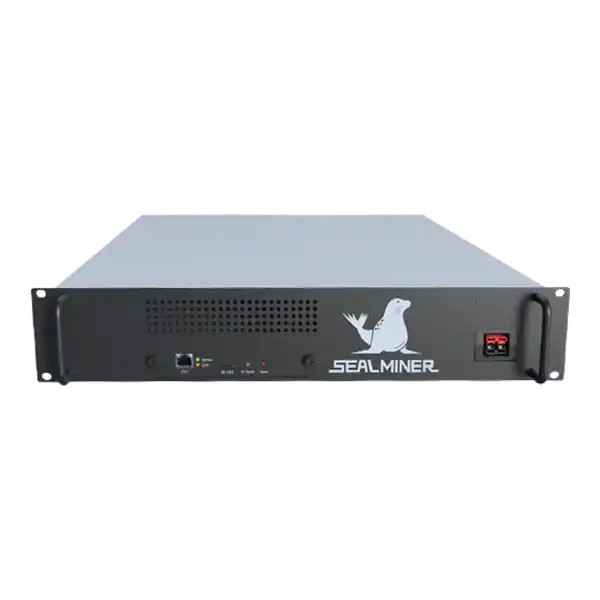

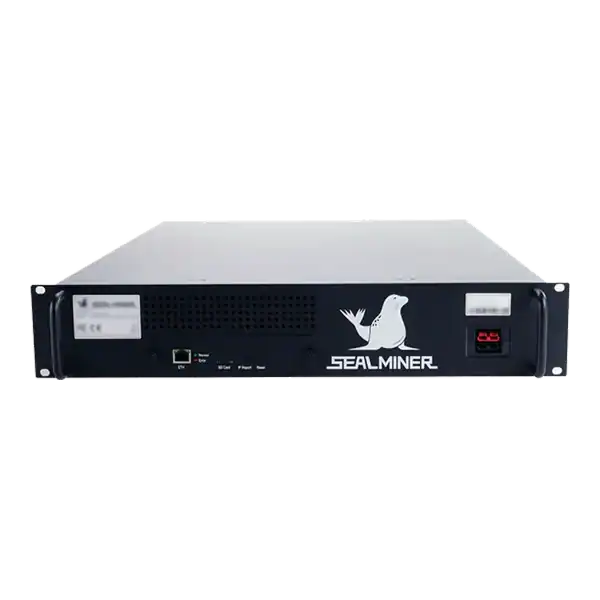
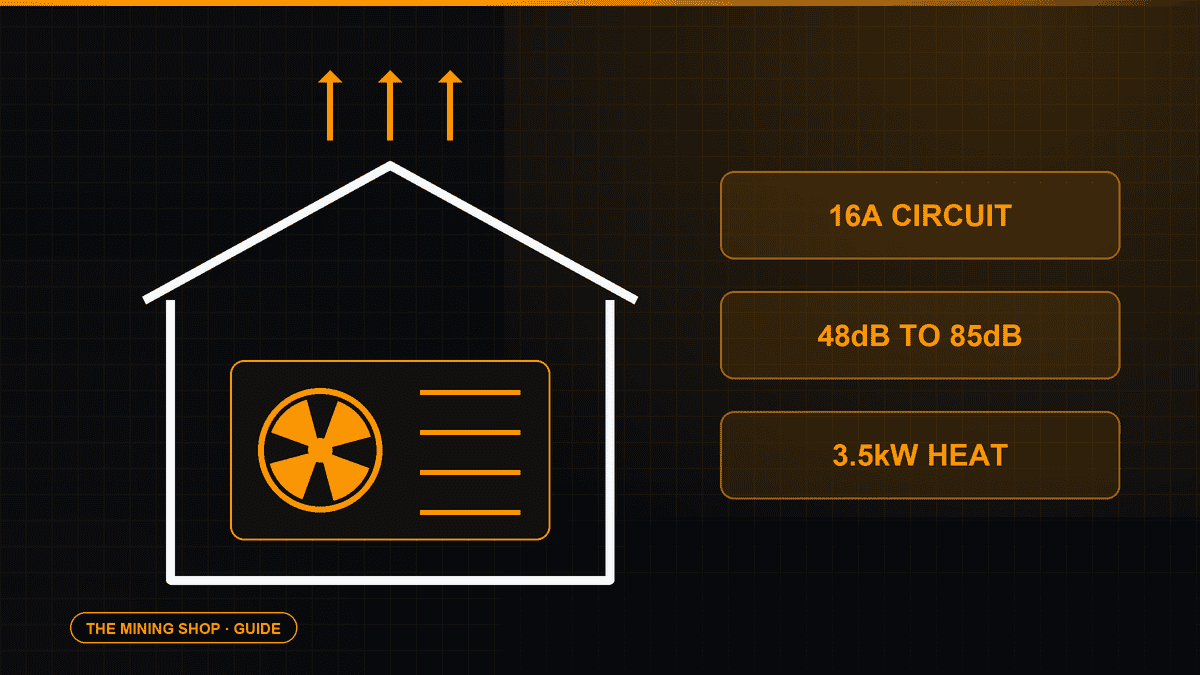
Home Bitcoin mining: A home ASIC needs a suitable dedicated circuit, competent electrical assessment and a safe route for continuous heat and noise.
ASIC fleet management software: Create an exact model-by-function matrix because reading telemetry, changing pools, tuning and updating firmware can have.
Complete an IceRiver AE0 setup with the correct 19 to 20 V supply, Ethernet, private interface, Aleo pool, accepted-proof checks and official firmware controls.
Join the ASIC Mining Discussion
Members can read and join the discussion
Log in to read comments from other miners. Create a free account if you would like to ask a question or share your experience.
Membership helps us protect the discussion from spam and keep answers useful.